Passing Data Between Activities in Android: Tips and Best Practices

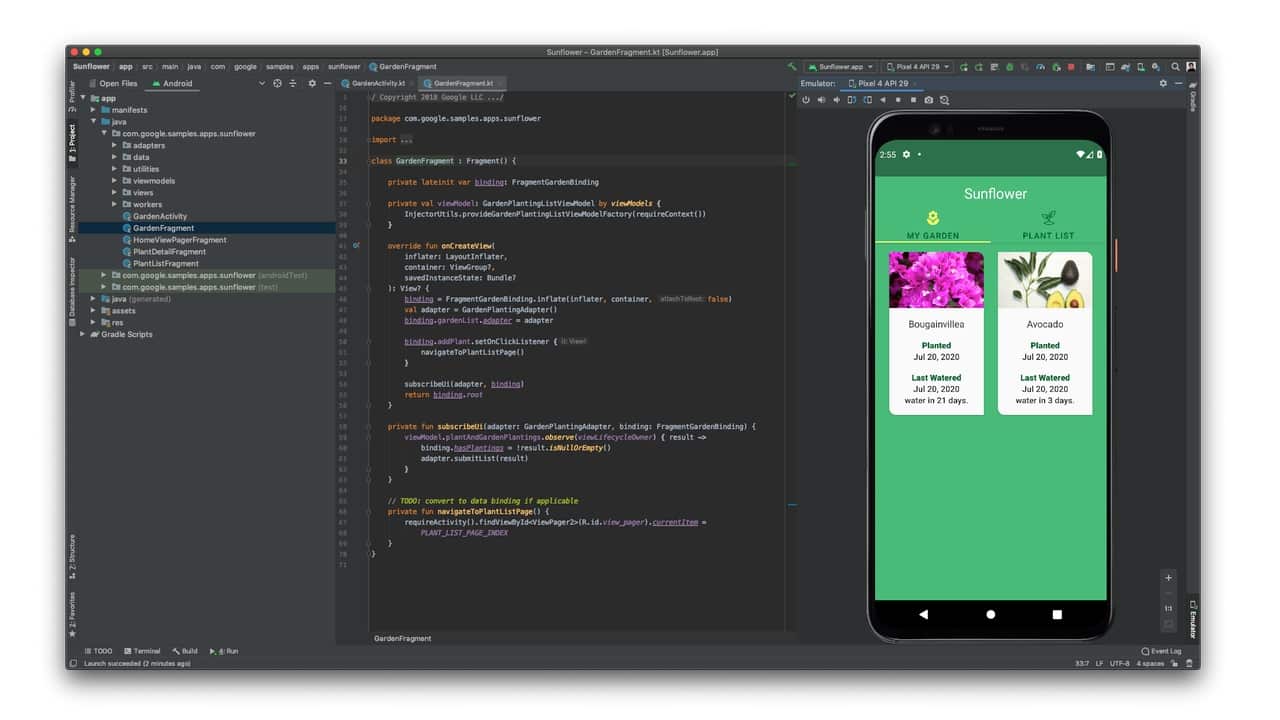
One of the fundamental tasks in Android development is passing data between activities. Whether you're building a simple app or a complex application with multiple screens, you'll need to transfer information from one activity to another. While the concept seems straightforward, there are multiple approaches to consider, each with its own strengths, limitations, and appropriate use cases.
Understanding the right way to pass data between activities can save you from bugs, performance issues, and maintenance headaches down the road. Let's explore the various methods and best practices for effective data transfer in Android.
Understanding the Basics: Intents and Extras
The most common and straightforward way to pass data between activities is through Intent extras. An Intent is a messaging object you use to request an action from another app component, and extras are key-value pairs that carry additional information.
Passing Primitive Data Types
For simple data types like strings, integers, booleans, and other primitives, Intent extras work perfectly.
// Sending Activity
Intent intent = new Intent(this, SecondActivity.class);
intent.putExtra("user_name", "John Doe");
intent.putExtra("user_age", 25);
intent.putExtra("is_premium", true);
startActivity(intent);

// Receiving Activity
String userName = getIntent().getStringExtra("user_name");
int userAge = getIntent().getIntExtra("user_age", 0);
boolean isPremium = getIntent().getBooleanExtra("is_premium", false);
In Kotlin, the syntax is even cleaner:
// Sending Activity
val intent = Intent(this, SecondActivity::class.java).apply {
    putExtra("user_name", "John Doe")
    putExtra("user_age", 25)
    putExtra("is_premium", true)
}
startActivity(intent)

// Receiving Activity
val userName = intent.getStringExtra("user_name")
val userAge = intent.getIntExtra("user_age", 0)
val isPremium = intent.getBooleanExtra("is_premium", false)
Best Practice: Use Constants for Keys
Hardcoding string keys throughout your code leads to typos and maintenance issues. Define constants for your extras:
class SecondActivity : AppCompatActivity() {
    companion object {
        const val EXTRA_USER_NAME = "extra_user_name"
        const val EXTRA_USER_AGE = "extra_user_age"
        const val EXTRA_IS_PREMIUM = "extra_is_premium"
    }

    override fun onCreate(savedInstanceState: Bundle?) {
        super.onCreate(savedInstanceState)
        val userName = intent.getStringExtra(EXTRA_USER_NAME)
        val userAge = intent.getIntExtra(EXTRA_USER_AGE, 0)
        val isPremium = intent.getBooleanExtra(EXTRA_IS_PREMIUM, false)
    }
}

// When launching
Intent(this, SecondActivity::class.java).apply {
    putExtra(SecondActivity.EXTRA_USER_NAME, "John Doe")
    putExtra(SecondActivity.EXTRA_USER_AGE, 25)
    putExtra(SecondActivity.EXTRA_IS_PREMIUM, true)
}.also { startActivity(it) }
Passing Complex Objects
When you need to pass more complex data structures, you have several options.
1. Serializable Interface
The simplest approach is making your data class implement Serializable. While easy to implement, it has performance overhead.
data class User(
    val name: String,
    val age: Int,
    val email: String
) : Serializable

// Sending
val user = User("John Doe", 25, "john@example.com")
val intent = Intent(this, ProfileActivity::class.java)
intent.putExtra("user_object", user)
startActivity(intent)

// Receiving
val user = intent.getSerializableExtra("user_object") as? User
When to use: Simple objects, prototyping, when performance isn't critical. When to avoid: Large objects, frequent data passing, performance-sensitive scenarios.
2. Parcelable Interface (Recommended)
Parcelable is Android's optimized serialization mechanism. It's faster than Serializable but requires more boilerplate code (though Kotlin makes this easier).
@Parcelize
data class User(
    val name: String,
    val age: Int,
    val email: String,
    val address: Address?
) : Parcelable

@Parcelize
data class Address(
    val street: String,
    val city: String,
    val zipCode: String
) : Parcelable

// Sending
val user = User("John Doe", 25, "john@example.com", null)
val intent = Intent(this, ProfileActivity::class.java)
intent.putExtra("user_object", user)
startActivity(intent)

// Receiving
val user = intent.getParcelableExtra<User>("user_object")
The @Parcelize annotation (available with the kotlin-parcelize plugin) automatically generates the Parcelable implementation code.
When to use: Most scenarios involving custom objects, especially when performance matters. Advantages: Faster than Serializable, type-safe, Android-optimized.
3. Passing Collections
You can pass ArrayLists of Parcelable or Serializable objects:
// ArrayList of Parcelable objects
val users = arrayListOf<User>(
    User("John", 25, "john@example.com", null),
    User("Jane", 30, "jane@example.com", null)
)
intent.putParcelableArrayListExtra("user_list", users)

// Receiving
val userList = intent.getParcelableArrayListExtra<User>("user_list")
Passing Data Back to the Previous Activity
Sometimes you need to pass data back from the second activity to the first. The modern approach uses the Activity Result API.
Using Activity Result API (Modern Approach)
class FirstActivity : AppCompatActivity() {

    private val getResult = registerForActivityResult(
        ActivityResultContracts.StartActivityForResult()
    ) { result ->
        if (result.resultCode == RESULT_OK) {
            val data = result.data
            val returnedValue = data?.getStringExtra("result_key")
            // Use the returned value
            Toast.makeText(this, "Returned: $returnedValue", Toast.LENGTH_SHORT).show()
        }
    }

    private fun launchSecondActivity() {
        val intent = Intent(this, SecondActivity::class.java)
        getResult.launch(intent)
    }
}

class SecondActivity : AppCompatActivity() {

    private fun returnResult() {
        val resultIntent = Intent().apply {
            putExtra("result_key", "Some result data")
        }
        setResult(RESULT_OK, resultIntent)
        finish()
    }
}
Custom Contracts for Type Safety
For better type safety and reusability, create custom contracts:
class GetUserContract : ActivityResultContract<Int, User?>() {
    override fun createIntent(context: Context, userId: Int): Intent {
        return Intent(context, UserSelectionActivity::class.java).apply {
            putExtra("user_id", userId)
        }
    }

    override fun parseResult(resultCode: Int, intent: Intent?): User? {
        return if (resultCode == Activity.RESULT_OK) {
            intent?.getParcelableExtra("selected_user")
        } else null
    }
}

// Usage
class MainActivity : AppCompatActivity() {
    private val getUserResult = registerForActivityResult(GetUserContract()) { user ->
        user?.let {
            // Handle the returned user object
            displayUser(it)
        }
    }

    private fun selectUser() {
        getUserResult.launch(123) // Pass user ID
    }
}
Alternative Approaches for Complex Scenarios
1. Shared ViewModel (Recommended for Fragment Communication)
While primarily used for fragments, shared ViewModels can also coordinate data between activities in certain architectures:
class SharedDataViewModel : ViewModel() {
    private val _userData = MutableLiveData<User>()
    val userData: LiveData<User> = _userData

    fun setUser(user: User) {
        _userData.value = user
    }
}

// In both activities
class FirstActivity : AppCompatActivity() {
    private val sharedViewModel: SharedDataViewModel by viewModels()

    private fun passData() {
        sharedViewModel.setUser(User("John", 25, "john@example.com", null))
        startActivity(Intent(this, SecondActivity::class.java))
    }
}

class SecondActivity : AppCompatActivity() {
    private val sharedViewModel: SharedDataViewModel by viewModels()

    override fun onCreate(savedInstanceState: Bundle?) {
        super.onCreate(savedInstanceState)
        sharedViewModel.userData.observe(this) { user ->
            // Use the user data
        }
    }
}
Note: This approach works best when activities are part of the same navigation graph or when using single-activity architecture.
2. Singleton Pattern or Application Class
For data that needs to be accessible across multiple activities:
object DataHolder {
    var currentUser: User? = null
    var sessionData: SessionData? = null
}

// Set data
DataHolder.currentUser = user

// Access data in any activity
val user = DataHolder.currentUser
Warning: This approach should be used sparingly and only for truly global data. It can lead to memory leaks if not managed properly and makes testing more difficult.
3. Persistent Storage
For data that should survive process death or needs to be shared across app sessions:
// SharedPreferences for simple key-value pairs
val sharedPref = getSharedPreferences("app_prefs", Context.MODE_PRIVATE)
sharedPref.edit().putString("user_name", "John Doe").apply()

// Room Database for structured data
@Entity
data class User(
    @PrimaryKey val id: Int,
    val name: String,
    val email: String
)

// DataStore for typed data (modern alternative to SharedPreferences)
val Context.dataStore: DataStore<Preferences> by preferencesDataStore(name = "settings")
Size Limitations and Performance Considerations
Transaction Size Limits
Intent extras have a size limit of approximately 1MB for the entire transaction buffer. Attempting to pass very large objects can cause TransactionTooLargeException.
Best practices:
- Keep passed data small and essential
- For large datasets, pass an ID and fetch the full data from a database or repository
- Consider breaking large objects into smaller pieces
- Use persistent storage for large amounts of data
// Instead of this:
intent.putExtra("large_image_bitmap", largeBitmap) // Can crash!

// Do this:
val imageUri = saveBitmapToCache(largeBitmap)
intent.putExtra("image_uri", imageUri.toString())
Performance Tips
- Prefer Parcelable over Serializable for better performance
- Pass only necessary data - don't serialize entire object graphs when you only need a few fields
- Use primitive types when possible instead of wrapper objects
- Avoid passing large collections - pass IDs and query the data instead
- Cache expensive operations - if you're passing computed data, cache it rather than recomputing
Modern Best Practices Summary
1. Type Safety with Kotlin Extensions
Create extension functions for safer intent creation:
inline fun <reified T : Activity> Context.startActivity(
    extras: Intent.() -> Unit = {}
) {
    val intent = Intent(this, T::class.java)
    intent.extras()
    startActivity(intent)
}

// Usage
startActivity<SecondActivity> {
    putExtra("user_name", "John Doe")
    putExtra("user_age", 25)
}
2. Builder Pattern for Complex Intents
For activities that require multiple parameters:
class ProfileActivity : AppCompatActivity() {

    companion object {
        private const val EXTRA_USER_ID = "extra_user_id"
        private const val EXTRA_SHOW_EDIT = "extra_show_edit"
        private const val EXTRA_SOURCE = "extra_source"

        fun createIntent(
            context: Context,
            userId: Int,
            showEditOption: Boolean = false,
            source: String? = null
        ): Intent {
            return Intent(context, ProfileActivity::class.java).apply {
                putExtra(EXTRA_USER_ID, userId)
                putExtra(EXTRA_SHOW_EDIT, showEditOption)
                source?.let { putExtra(EXTRA_SOURCE, it) }
            }
        }
    }

    override fun onCreate(savedInstanceState: Bundle?) {
        super.onCreate(savedInstanceState)
        val userId = intent.getIntExtra(EXTRA_USER_ID, -1)
        val showEdit = intent.getBooleanExtra(EXTRA_SHOW_EDIT, false)
        val source = intent.getStringExtra(EXTRA_SOURCE)
    }
}

// Usage
val intent = ProfileActivity.createIntent(
    context = this,
    userId = 123,
    showEditOption = true,
    source = "main_screen"
)
startActivity(intent)
3. Null Safety and Default Values
Always provide sensible defaults and handle null cases:
val userName = intent.getStringExtra("user_name") ?: "Unknown User"
val userAge = intent.getIntExtra("user_age", 0).takeIf { it > 0 } ?: 18
val user = if (Build.VERSION.SDK_INT >= Build.VERSION_CODES.TIRAMISU) {
    intent.getParcelableExtra("user_object", User::class.java)
} else {
    @Suppress("DEPRECATION")
    intent.getParcelableExtra("user_object")
}
4. Validation and Error Handling
Validate received data before using it:
override fun onCreate(savedInstanceState: Bundle?) {
    super.onCreate(savedInstanceState)

    val userId = intent.getIntExtra(EXTRA_USER_ID, -1)
    if (userId == -1) {
        Log.e(TAG, "Invalid user ID received")
        finish()
        return
    }

    val user = intent.getParcelableExtra<User>(EXTRA_USER)
    if (user == null) {
        Log.e(TAG, "User object not found in intent")
        finish()
        return
    }

    // Proceed with valid data
    displayUser(user)
}
Common Pitfalls to Avoid
1. Memory Leaks
Don't store Activity references in static variables or singletons:
// BAD - causes memory leak
object DataHolder {
    var currentActivity: Activity? = null // Never do this!
}

// GOOD - pass data, not references
object DataHolder {
    var currentUserId: Int? = null
}
2. Process Death
Remember that activities can be killed by the system. Always handle the case where your data might be lost:
override fun onSaveInstanceState(outState: Bundle) {
    super.onSaveInstanceState(outState)
    outState.putParcelable("user_data", currentUser)
}

override fun onCreate(savedInstanceState: Bundle?) {
    super.onCreate(savedInstanceState)
    currentUser = savedInstanceState?.getParcelable("user_data")
        ?: intent.getParcelableExtra("user_data")
}
3. Security Considerations
Don't pass sensitive data through intents if other apps might intercept them:
// RISKY - other apps can potentially read this
intent.putExtra("password", userPassword)

// BETTER - use secure storage
securePreferences.edit()
    .putString("password", encryptedPassword)
    .apply()
Choosing the Right Approach
Use Intent Extras when:
- Passing simple data types or small objects
- Data is needed immediately on activity creation
- One-time data transfer
- Activities are loosely coupled
Use Shared ViewModel when:
- Working within single-activity architecture
- Multiple fragments need the same data
- Data should survive configuration changes
- Real-time data updates needed
Use Persistent Storage when:
- Data should survive app restarts
- Data is large or complex
- Multiple app components need access
- Data needs to be cached
Use Singletons/Application Class when:
- Truly global app state
- Configuration data
- Temporary caching (with caution)
Conclusion
Passing data between activities is a fundamental Android development skill, but doing it well requires understanding the trade-offs between different approaches. Start with Intent extras for simple cases, use Parcelable for custom objects, and leverage the Activity Result API for return values. For more complex scenarios, consider ViewModels, repositories, or persistent storage.
The key is choosing the right tool for your specific use case while keeping your code maintainable, performant, and crash-free. Always validate your data, handle edge cases, and remember that simplicity often beats cleverness.
Master these patterns, and you'll build Android apps that transfer data seamlessly, efficiently, and reliably across all your activities.