Getting started with React Native


As a beginner, starting React Native with Expo is one of the fastest ways to create a mobile app. For a person with little knowledge of react.js , learning React Native will be easier. Even for a complete beginner, Expo provides a framework with file-based routing, making it extremely easy to create projects as a beginner.
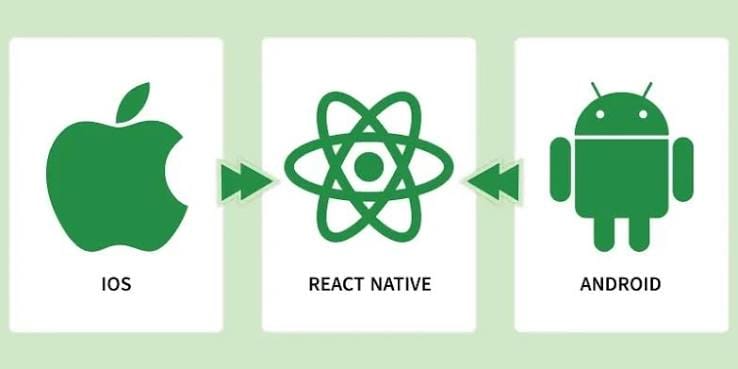
Prerequisites for creating an expo project
Before creating an Expo project, make sure you have the following tools installed:
- Node.js: LTS or latest version installed on your machine.
- VS Code: A text/code editor.
- Expo Go App: Installed on your mobile device (iOS or Android) for live testing.
Step 1: Create the Expo Project
- Open your terminal or command prompt and navigate to your preferred directory (for example, E:\Beginner).
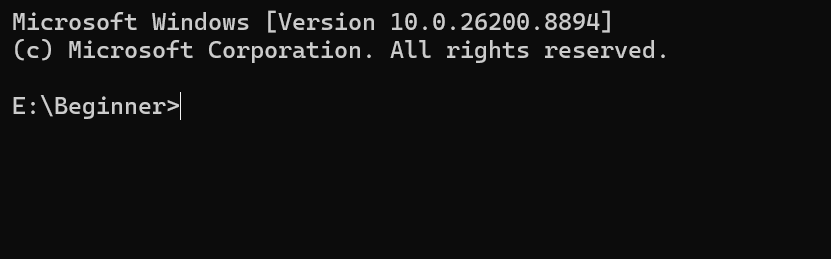
- Run the following command to create a new Expo project: npx create-expo-app@latest.
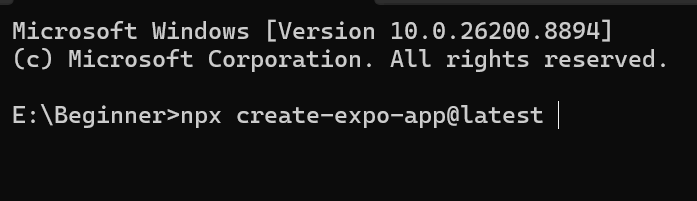
- Name the app: appname and select your SDK version (e.g., 54) using the Up and Down arrow keys when prompted.
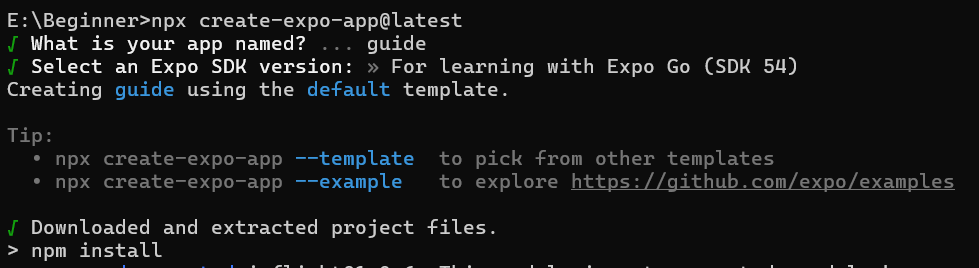
- Open this folder in VSCode and any other code editor.
Step 2: Start the Development Server
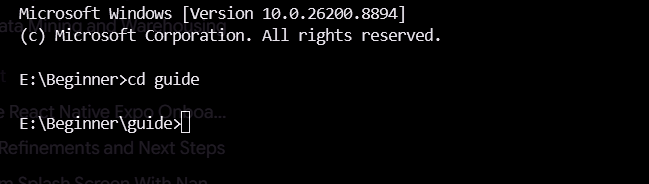
- Navigate into your new project directory
- Start the Expo development server
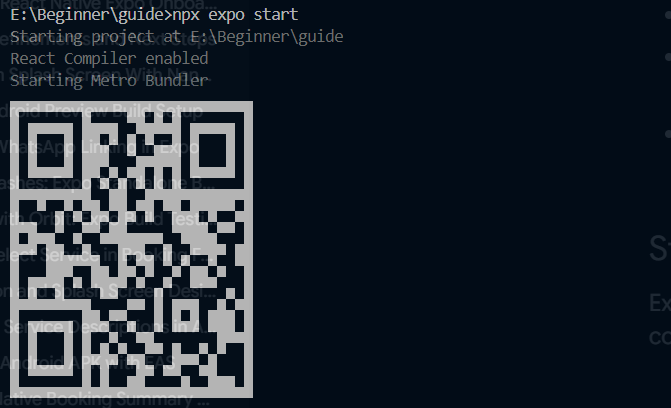
- Open the Expo Go app on your phone and scan the displayed QR code to view your app live.
Troubleshooting Tip: If you encounter network/connection errors while scanning the QR code, restart the server using the tunnel option
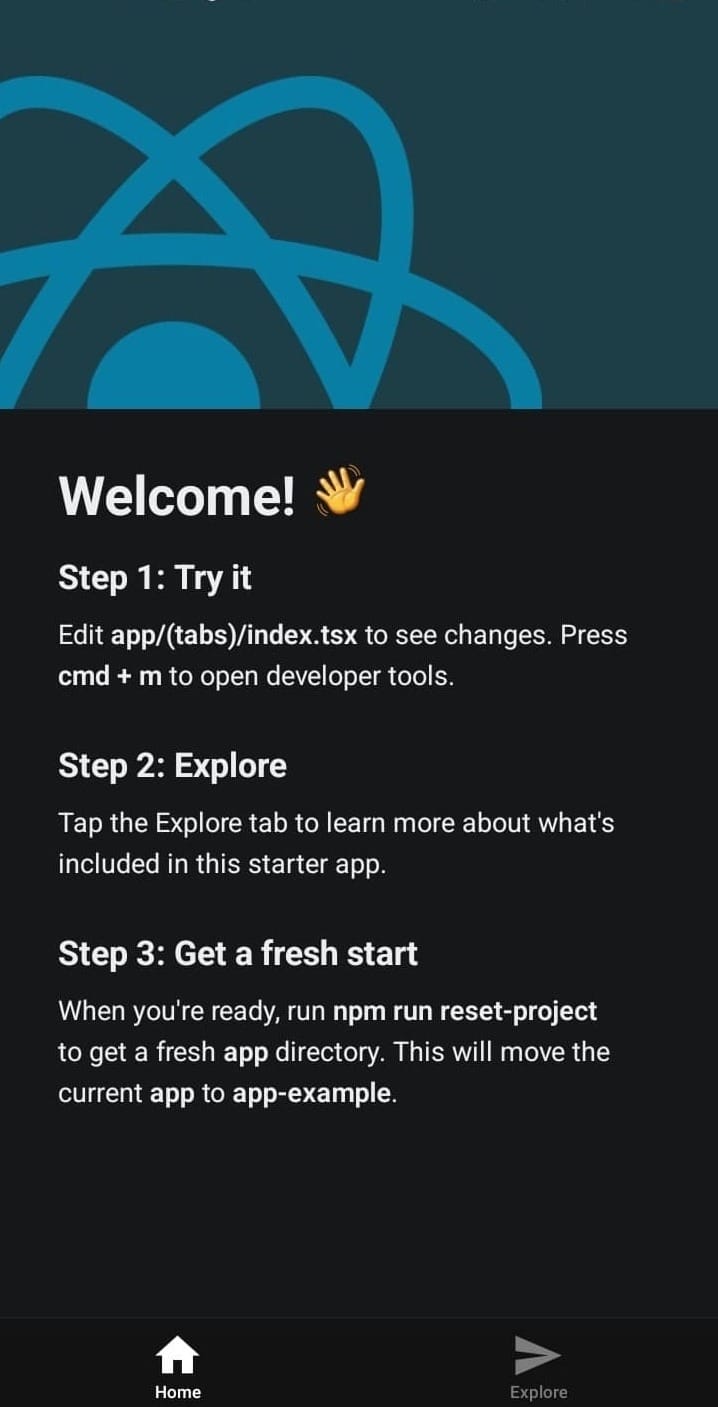
After the app loads successfully, it shows the following screen.
Step 3: Understand the File-Based Project Structure
Expo Router uses file-based routing to manage app pages and navigation:
- app/_layout.tsx: Defines the root layout, stack navigation, tabs, and modals.
- app/index.tsx: The main entry page / homepage.
- app/explore.tsx: The Explore tab page.
- assets/: Contains project images, icons, and fonts.
- components/: Reusable UI elements used across different screens.
Step 4: Clear the Default Template (Optional)
If you want to build your homepage from scratch without the default template code:
- Run the reset script: npm run reset-project.
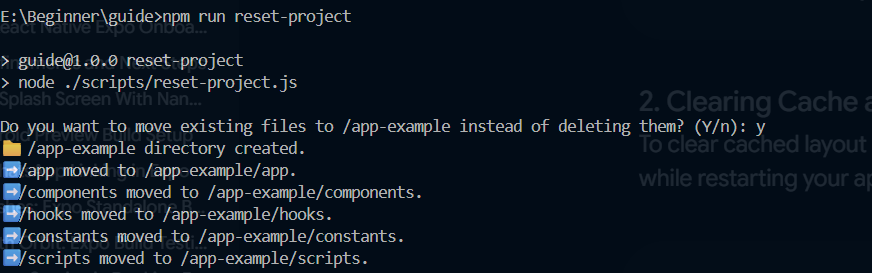
- Restart the dev server with a clear cache: npx expo start -c Or with tunnel, npx expo start --tunnel -c
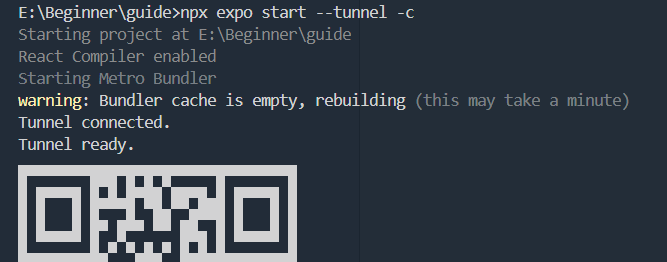
- Now, scan the QR on Expo Go, and now you can see how the app looks.
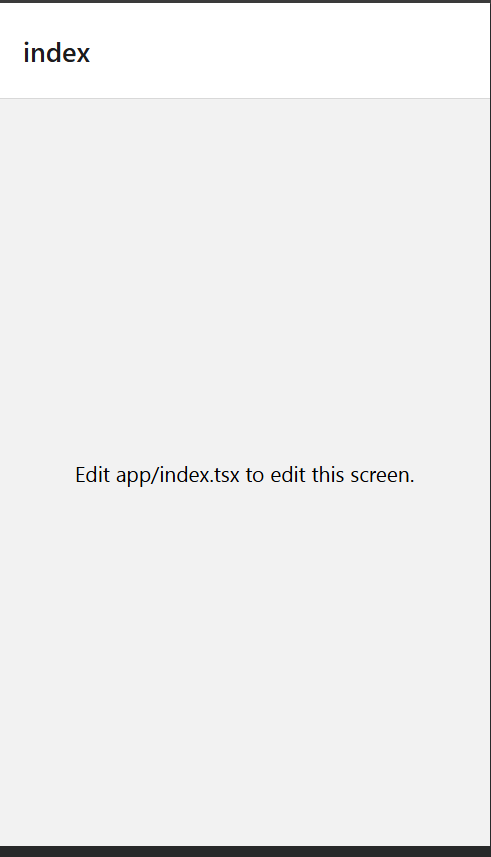
Step 5: Build Your Custom Homepage
- Open app/index.tsx in VS Code.
- Replace the placeholder content with your own UI code.
- Save the file: Expo Go will hot reload automatically to reflect your changes on your device!. If not reload the app.
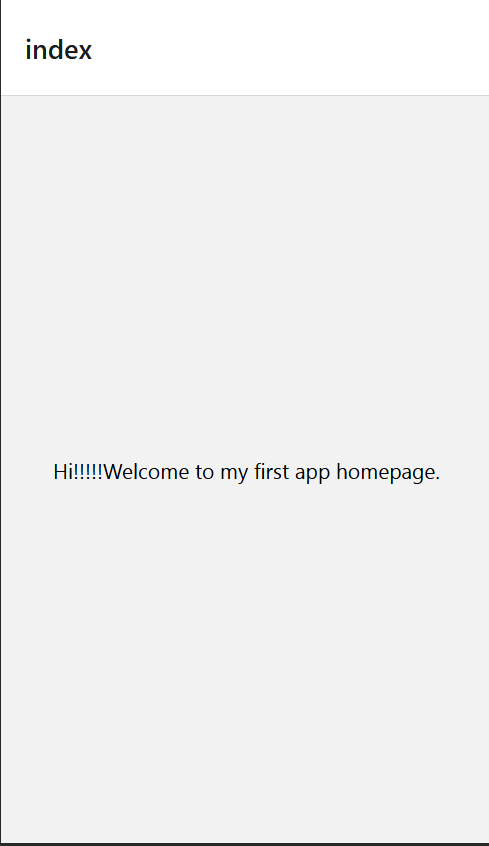
Conclusion
Congratulations! You now have a working React Native app set up with Expo.
To take your mobile development skills further, here is the recommended order of core components and concepts to master next:
- View & Text: The fundamental layout block and text rendering elements in React Native.
- StyleSheet: Styling your components using JavaScript style objects (similar to CSS flexbox properties).
- ScrollView & SafeAreaView: Handling scrollable content and ensuring UI renders correctly around device notches, status bars, and home indicators.
- FlatList: Efficiently rendering long, performant lists of dynamic data.
- Stack Navigator & Tab Navigator: Managing multi-screen navigation and bottom tab bars using Expo Router.
By mastering these building blocks, you'll be fully equipped to design clean, functional mobile screens like custom homepages, product feeds, and service dashboards.