Google Meet Basics
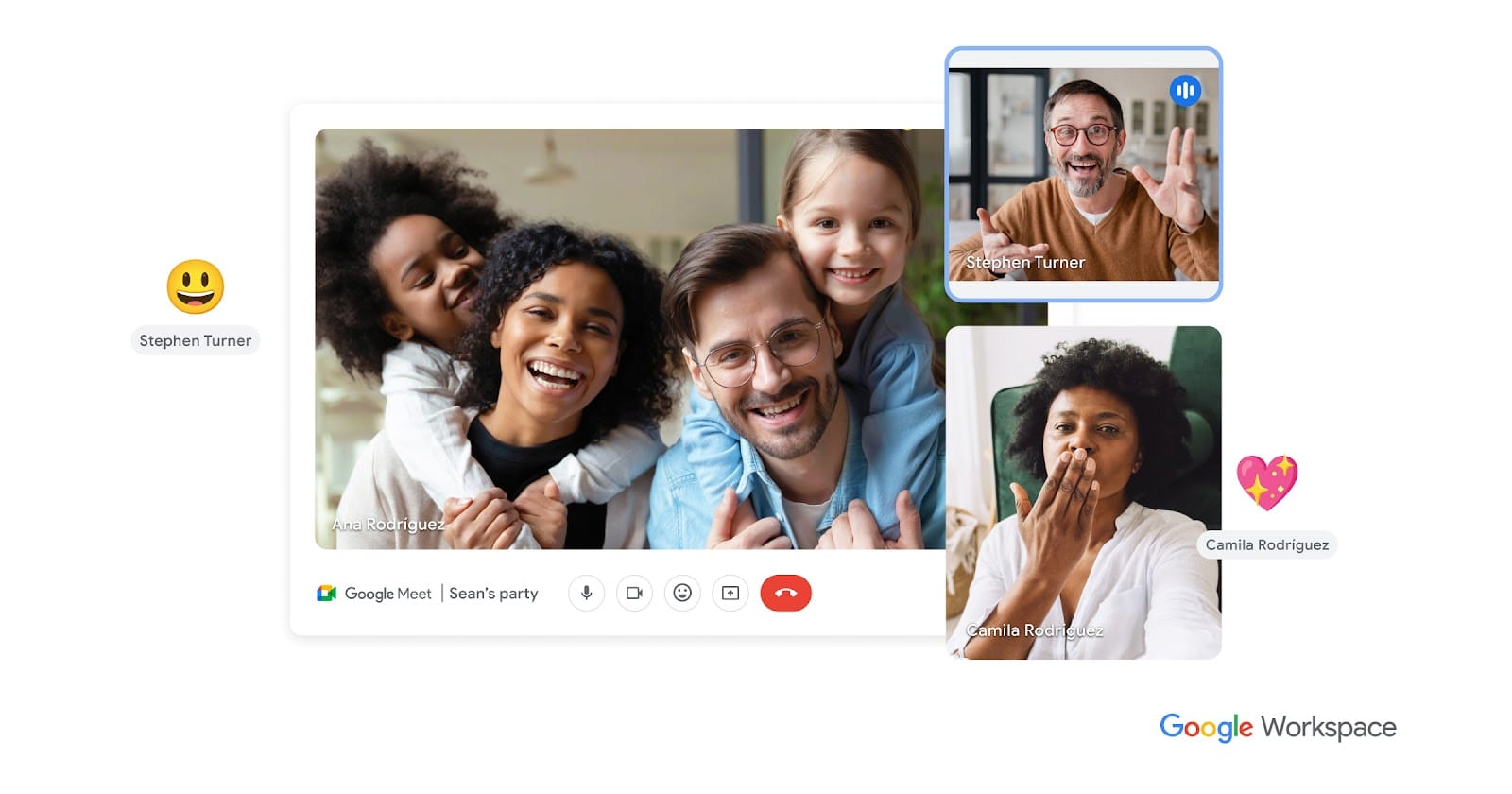
Google Meet is a video conferencing tool developed by Google. It allows people to connect through video calls, audio calls, and online meetings from anywhere using the internet.

Google Meet is a video conferencing tool developed by Google. It allows people to connect through video calls, audio calls, and online meetings from anywhere using the internet. Here's a quick overview of everything you need to know to get started with Google Meet:
Starting or Joining a Meeting
- Start a new meeting: Go to meet.google.com and click New meeting, or start one directly from Google Calendar.
- Join with a link: Click any Meet link shared with you, or enter a meeting code at meet.google.com.
- Join from Calendar: Open your event in Google Calendar and click Join with Google Meet.
During a Meeting
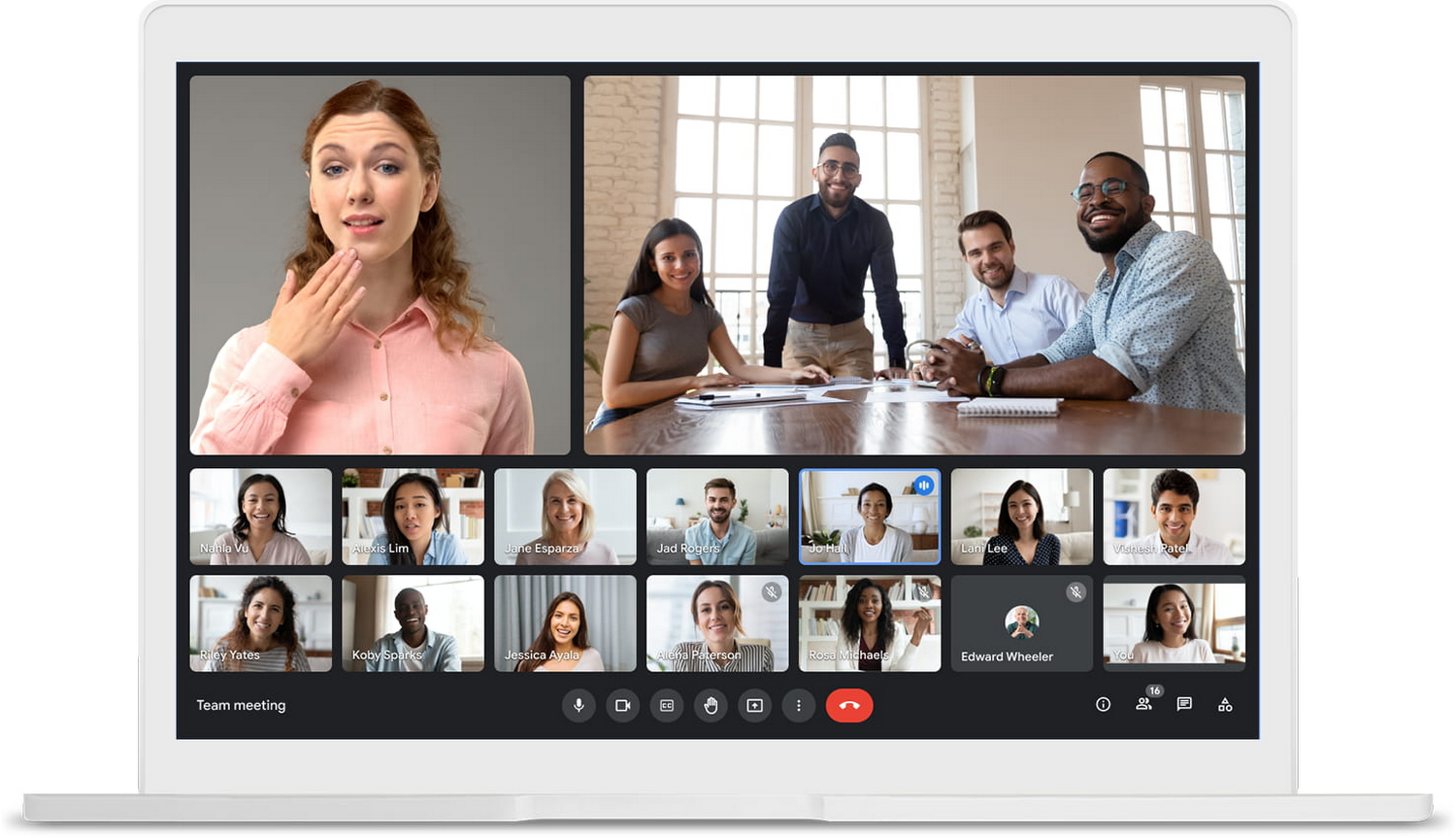
| Action | How to do it |
|---|---|
| Mute/unmute mic | Click the mic icon or press Ctrl+D (Windows) / Cmd+D (Mac) |
| Turn camera on/off | Click the camera icon or press Ctrl+E / Cmd+E |
| Share your screen | Click the Present now button (monitor icon) |
| Chat with participants | Click the chat bubble icon |
| Raise hand | Click the hand icon or press Ctrl+Alt+H |
| Leave meeting | Click the red Leave call button |
Key Features
- Backgrounds & Effects — Blur your background or choose a virtual background via Settings → Visual effects.
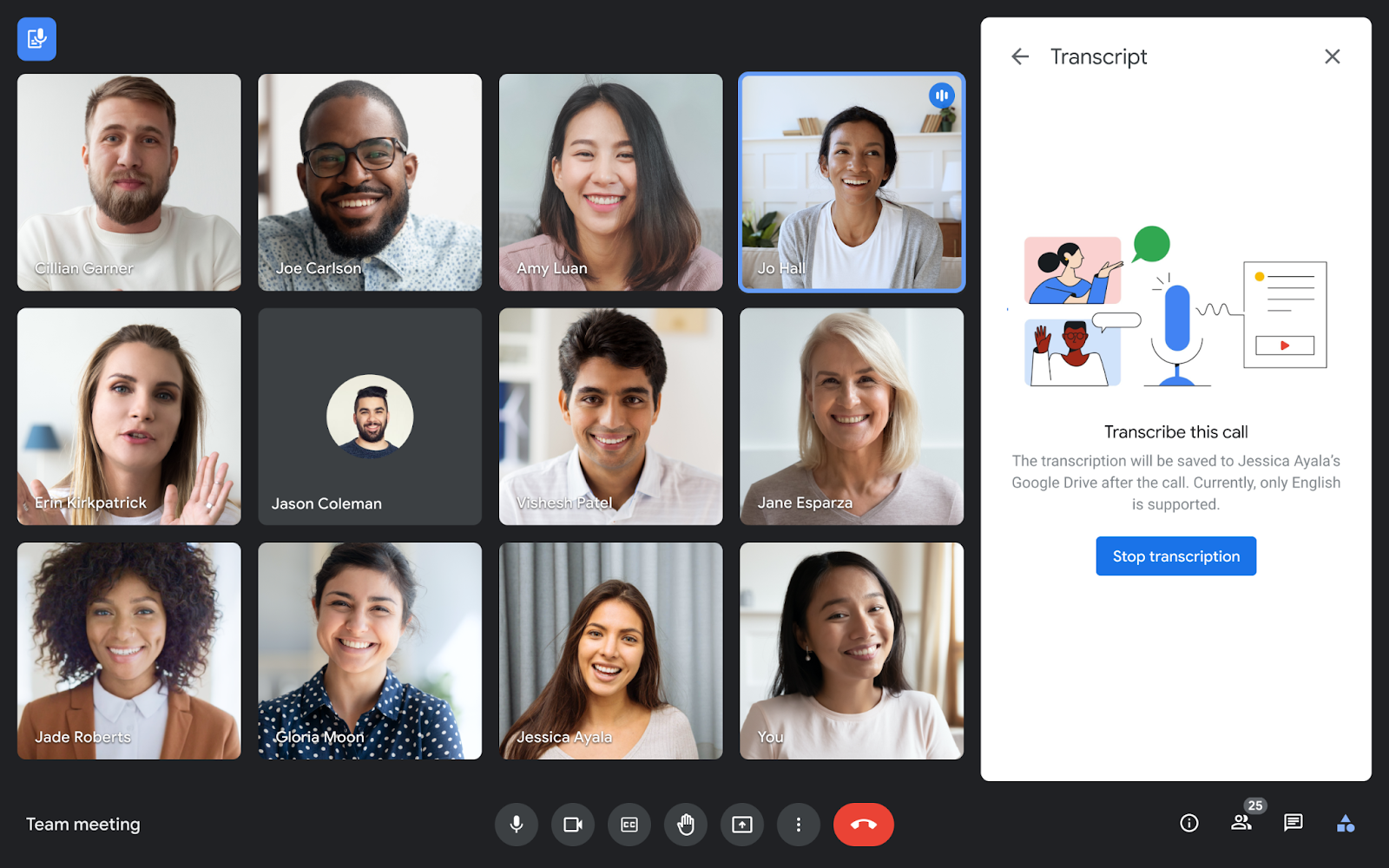
- Captions — Turn on live captions by clicking the CC button.
- Recording — Hosts can record meetings (saved to Google Drive). Look for the three-dot menu → Record meeting.
- Breakout Rooms — Hosts can split participants into smaller groups via the Activities panel.
- Polls & Q&A — Available via the Activities icon (bottom right).
- Reactions — Send emoji reactions without interrupting the conversation.
- Video Meetings – Host or join meetings with multiple participants
- Screen Sharing – Present your screen, slides, or documents
- Chat Messaging – Send messages during meetings
- Live Captions – Automatic subtitles during conversation
- Recording – Record meetings (available in some plans)
- Integration – Works with Google Calendar and Gmail
Tips for a Better Experience
- Use headphones to reduce echo.
- Check your audio/video before joining via the preview screen.
- Pin a participant's video by clicking their tile and selecting Pin.
- Use grid view (tiled layout) to see more participants at once.
- You can join Google Meet without a Google account as a guest, though some features may be limited.
How to Use Google Meet
1. Start a Meeting
- Go to Google Meet website or app
- Click “New Meeting”
- Choose:
- Start instantly
- Schedule for later
- Create a meeting link
2. Join a Meeting
- Click the meeting link shared with you
- Or enter the meeting code
- Allow camera and microphone access
Requirements
- Google account (recommended)
- Stable internet connection
- Device (mobile, laptop, desktop)
- Browser like Google Chrome (best compatibility)
Tips for Beginners
- Use headphones to avoid echo
- Keep microphone muted when not speaking
- Ensure proper lighting for video
- Test audio/video before joining
- Share meeting link carefully
Where It’s Used
- Online classes
- Business meetings
- Remote interviews
- Webinars and training