How to Create Regular Virtual Meeting in Google Meet


Many businesses, schools, and remote teams use Google Meet to connect online. When you meet with the same people regularly, setting up recurring meetings in Google Meet saves time and keeps everyone organized. The platform makes this simple through its integration with Google Calendar.
Benefits of Recurring Google Meet Sessions
Scheduling regular meetings creates consistency and strengthens collaboration. Instead of generating new meeting links each time, a recurring Google Meet setup works perfectly for weekly team check-ins, ongoing classes, or monthly client discussions. Participants always know exactly when and how to join.
Here is a simple process to create a regular virtual meeting in Google Meet.
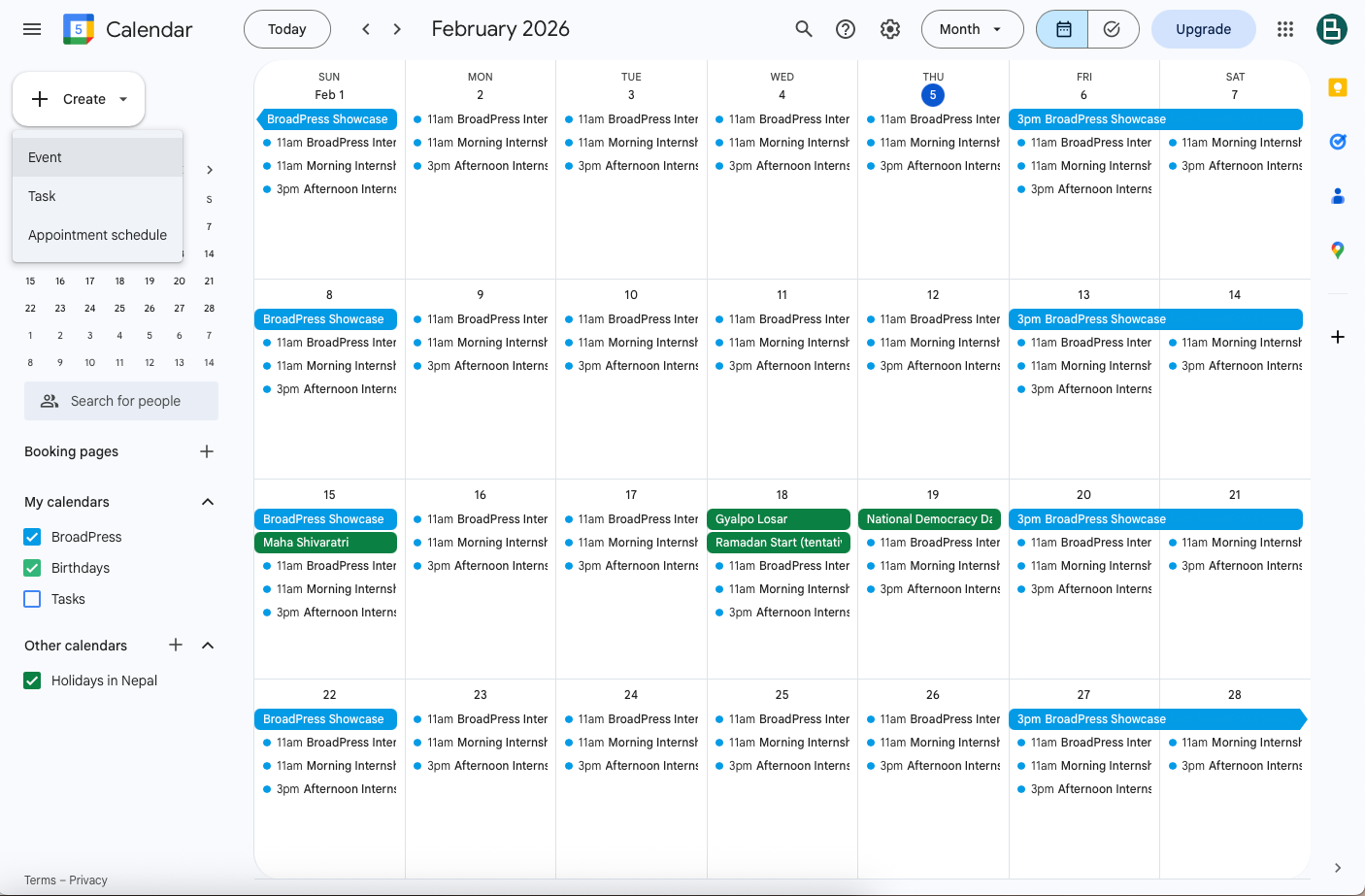
Open Google Calendar using your Google account or go to : https://calendar.google.com & click on "+" icon then click on "Event"
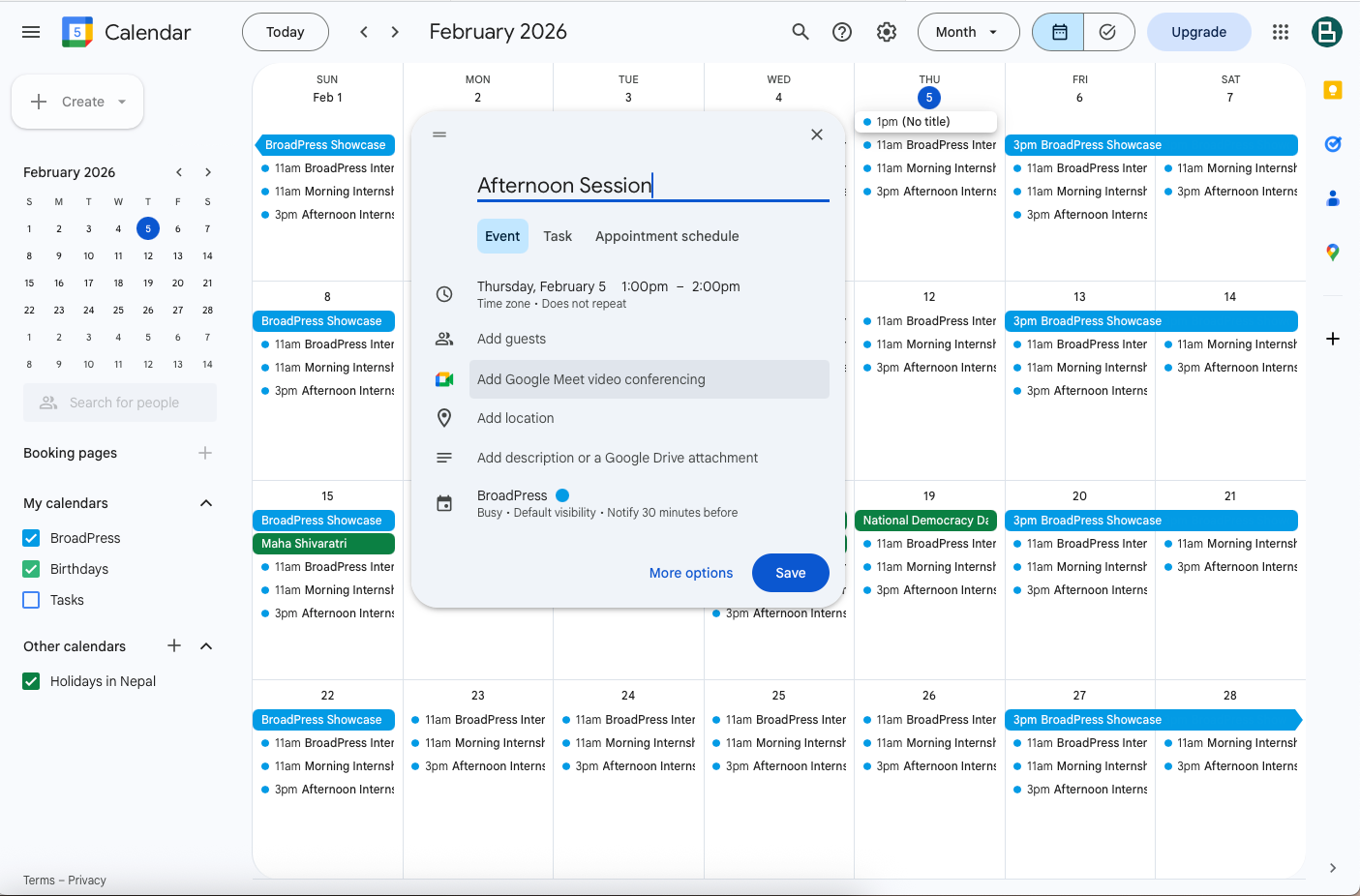
Click on Create or select a date and time for your meeting
Set a starting time of regular meeting
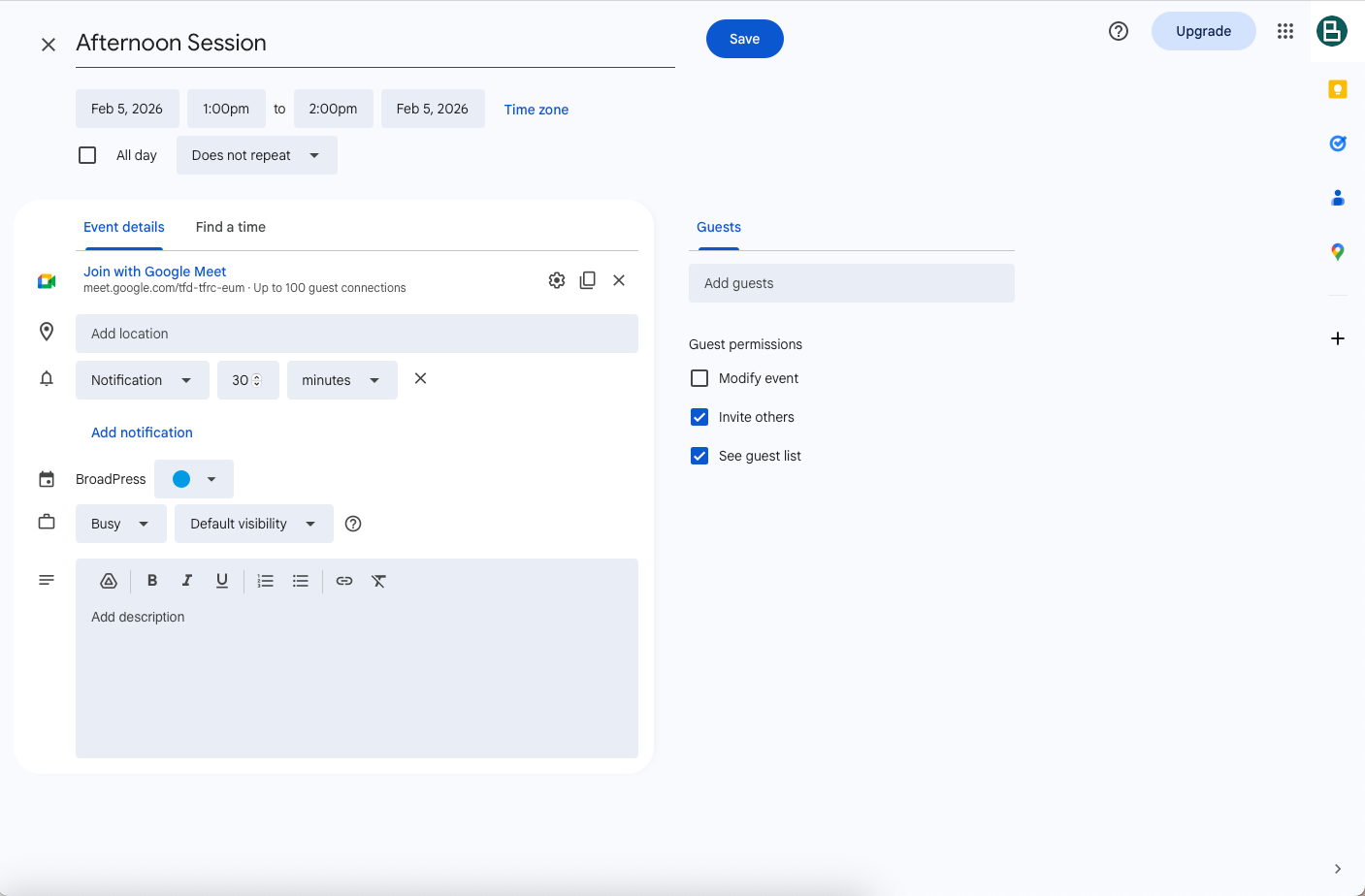
Set ending time of regular meeting
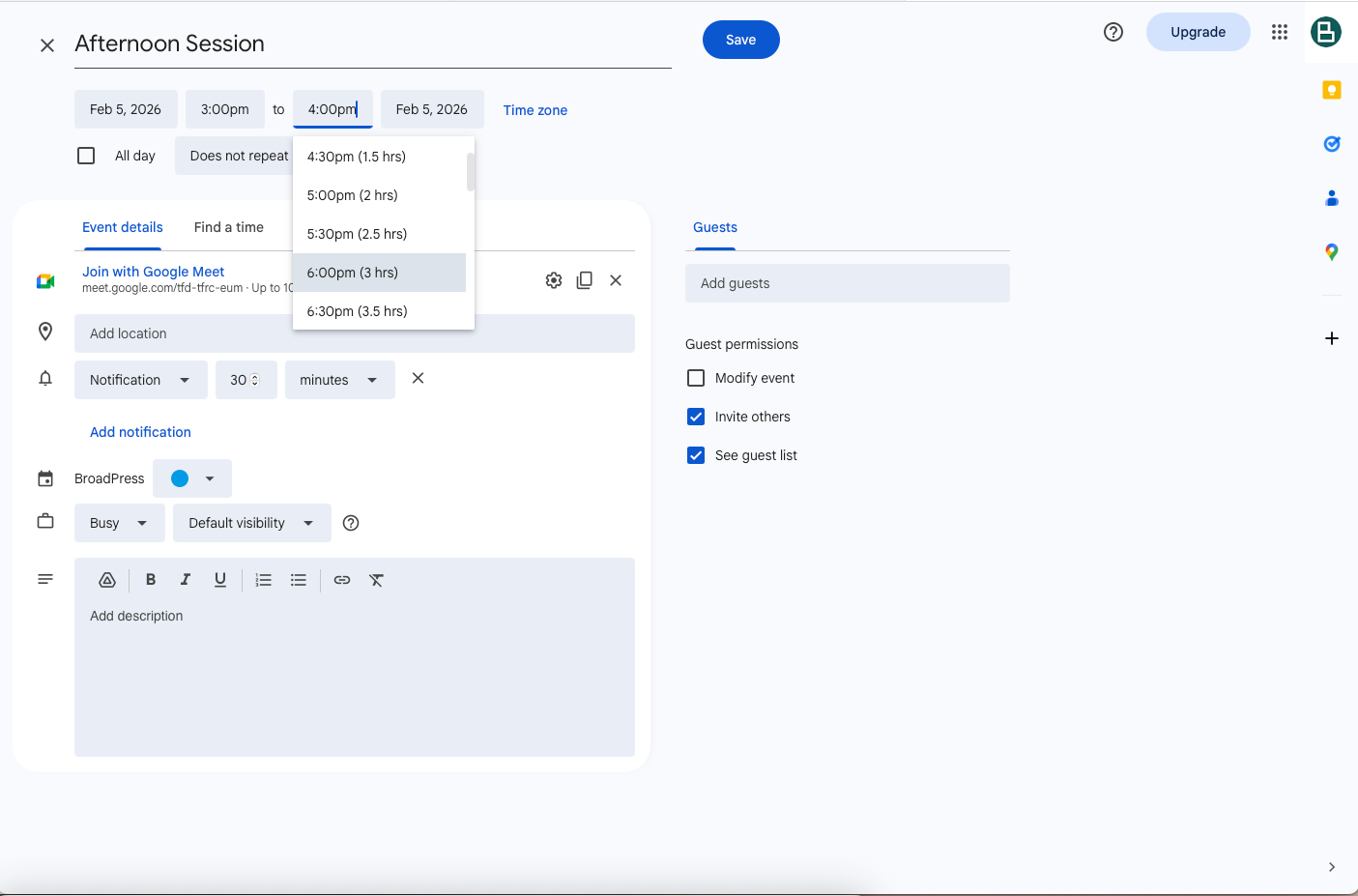
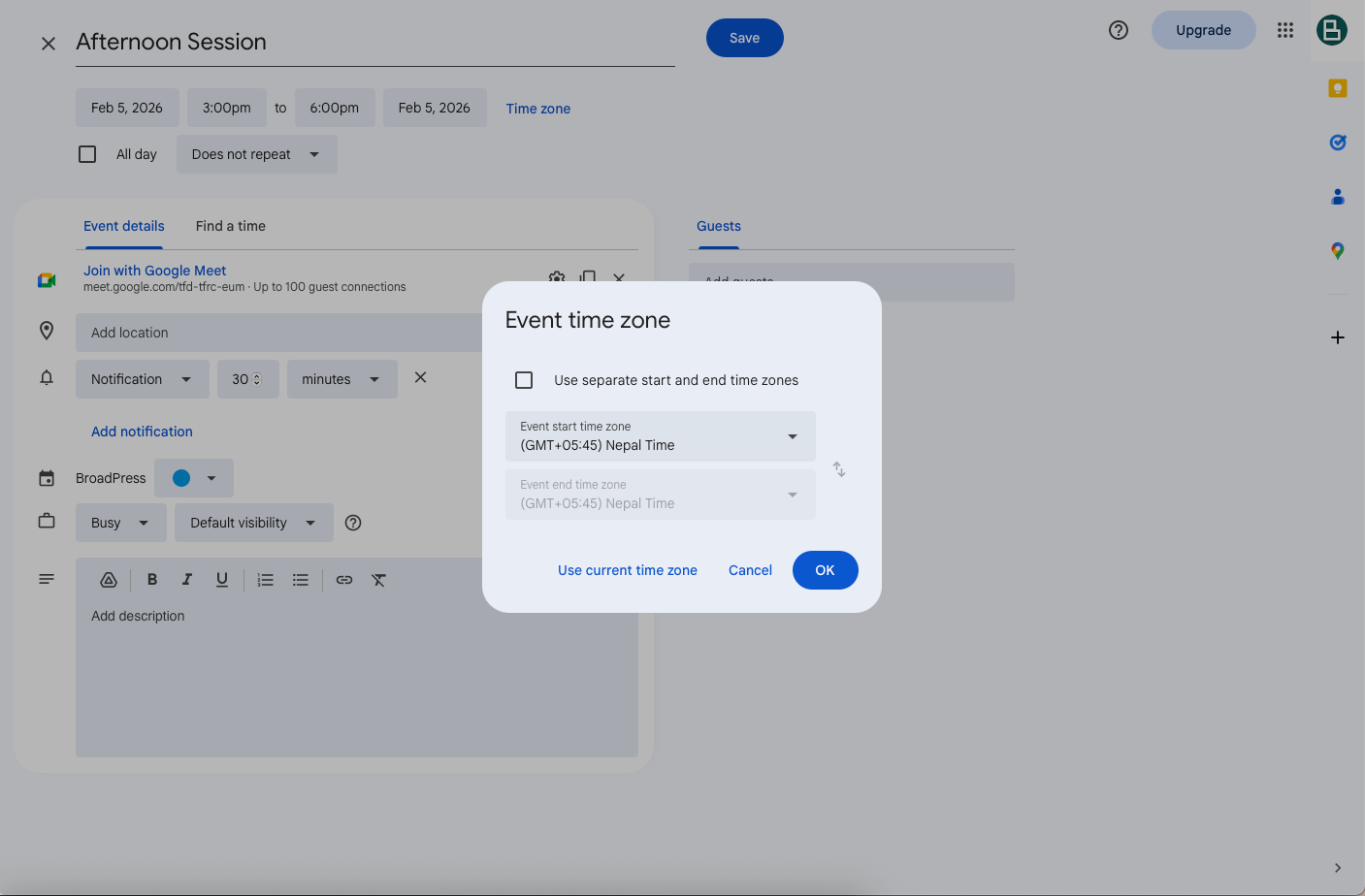
Select appropriate time zone of the virtual session.
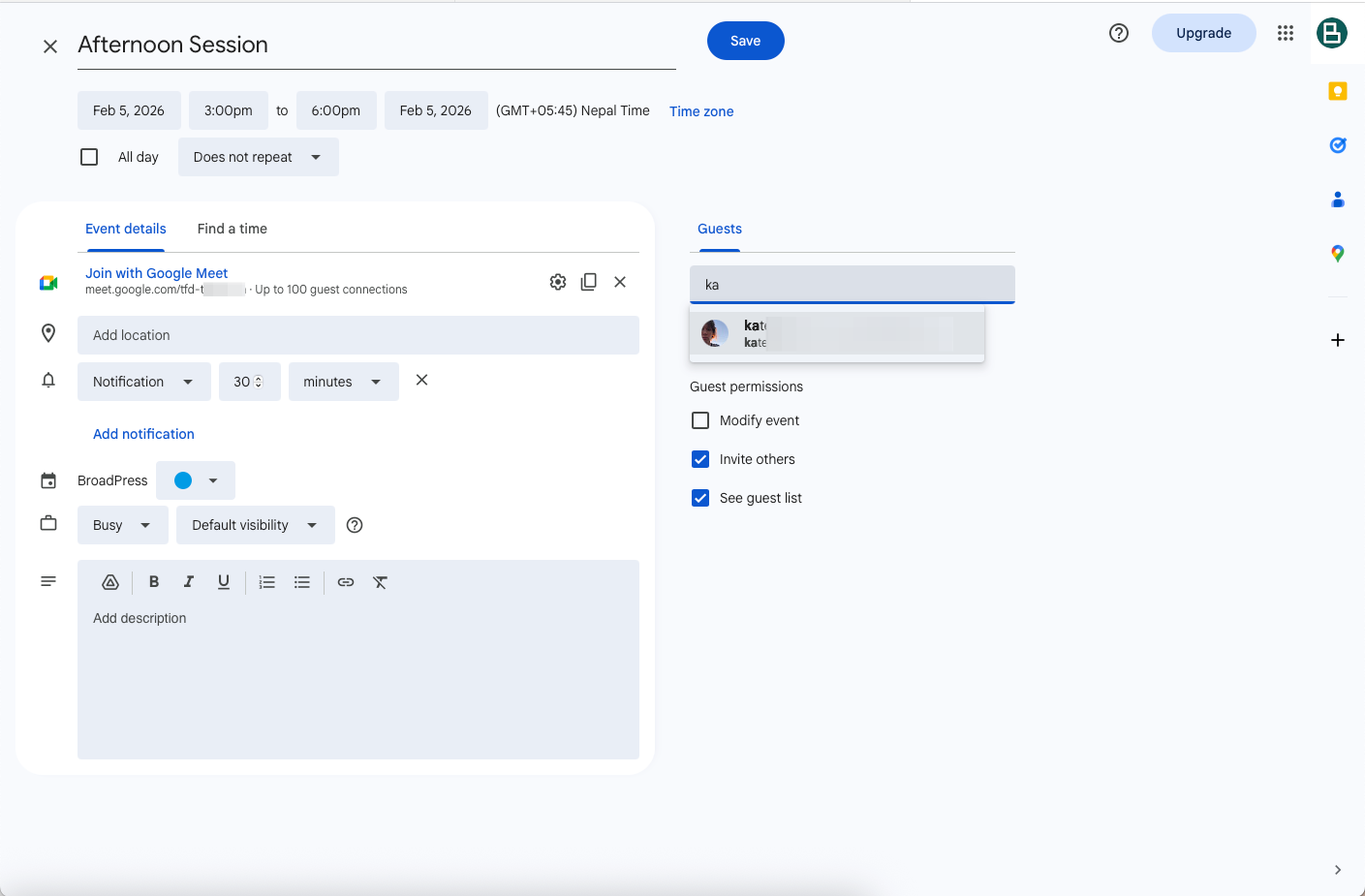
Add guest from Right pane so the guest can join the session directly. This can be done for any admin or co-host of the meeting.
Select "Does not repeat" dropdown to custom
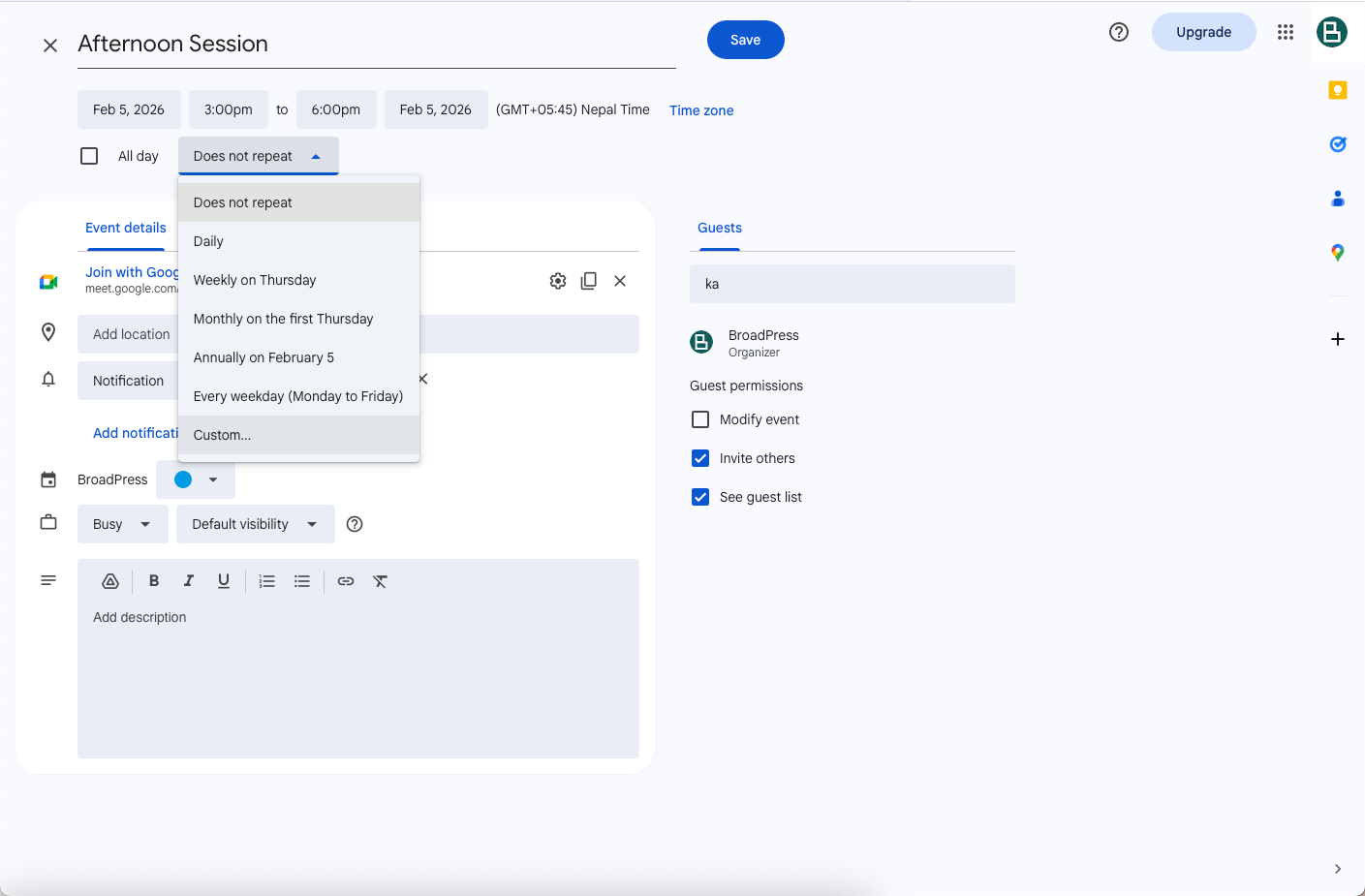
Select the days of regular meeting based on Sunday to Saturday and also ending date.
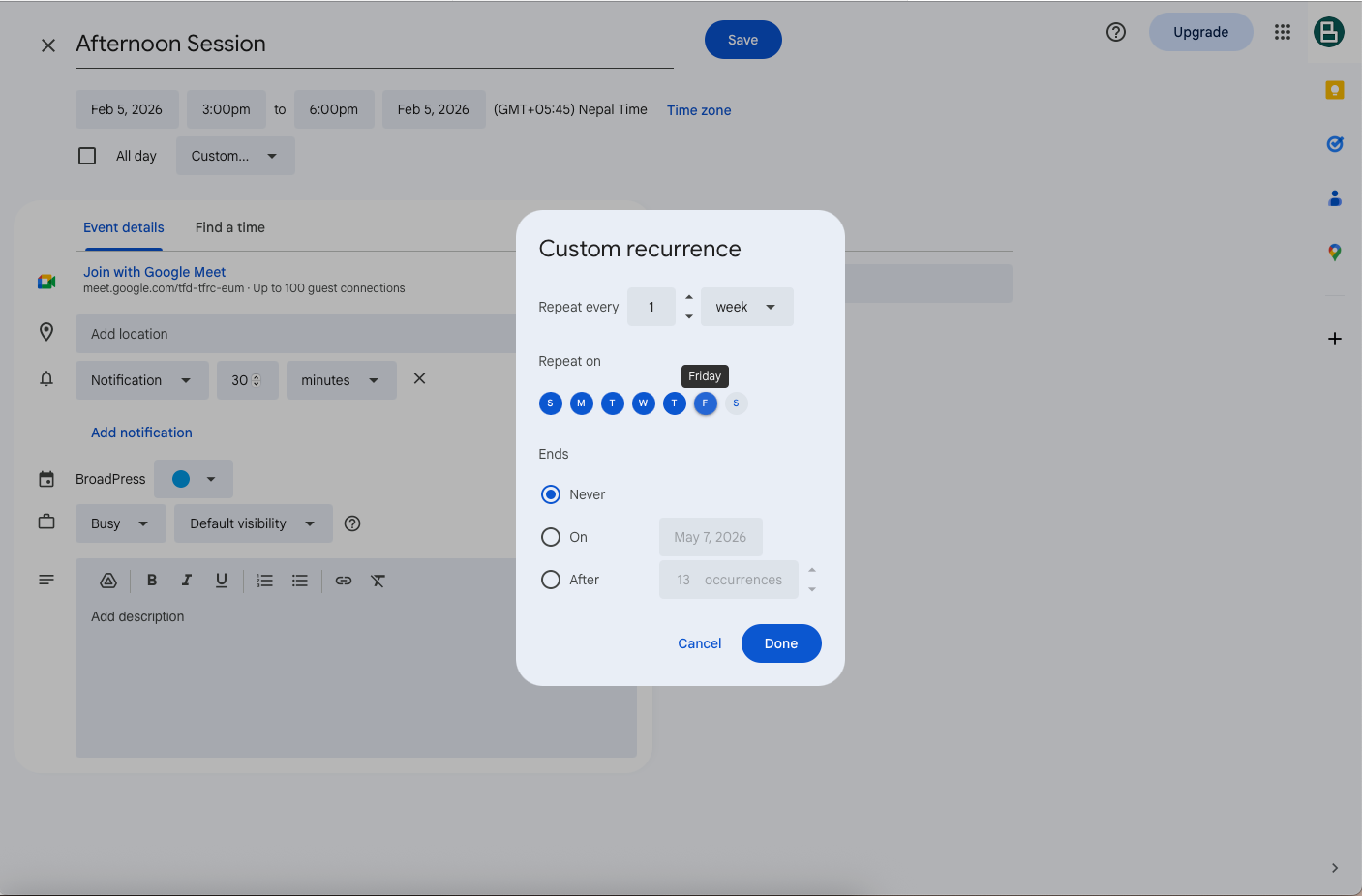
After completing the process, calendar will provide a virtual link in following format "https://meet.google.com/yyy-xxxx-zzz. This link can be shared with the attendees.
How to Edit or Stop a Regular Google Meet Meeting
If your schedule changes, Google Calendar allows easy updates. You can modify the meeting time, change recurrence settings, or cancel future meetings without affecting past ones. Simply open the event, make changes, and choose whether to apply them to one event or all recurring events.
Best Practices for Regular Virtual Meetings
To get the most out of recurring meetings in Google Meet, always share the agenda in advance, enable notifications, and test your audio and video before joining. This ensures meetings stay professional and efficient.